早些時間有收集一些Youtube Downloader,隨著Youtube的更版與限制。
這些原本可以下載的網頁慢慢地消失或者無法下載大於720p的影音。
360P就不用提了,畫質太低無法滿足需求。
還有好有yt-dlp,以 Python 開發的開源影片下載工具,主要用來從 YouTube 以及上千個影音網站下載影片與音訊,是目前下載的主流工具之一。
yt-dlp 安裝教學(windows)
Windows 安裝 yt-dlp(含 PATH 設定)
下載 yt-dlp(Windows 版)
下載 yt-dlp(Windows 版)
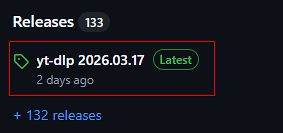
官方 GitHub Releases:
到Lastest 版本
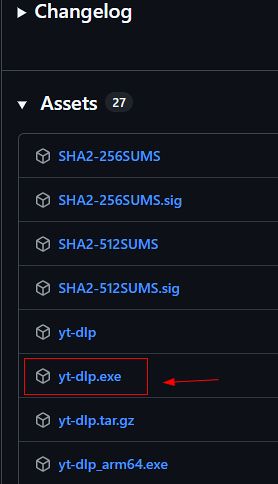
下載 yt-dlp.exe
建立資料夾,例如:
D:\tools\yt\
將 yt-dlp.exe 放入該資料夾
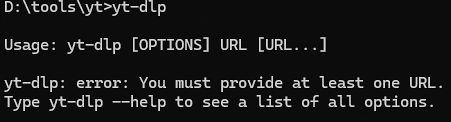
輸入yt-dlp 看有沒有反應,如果有就表示正常
安裝 ffmpeg
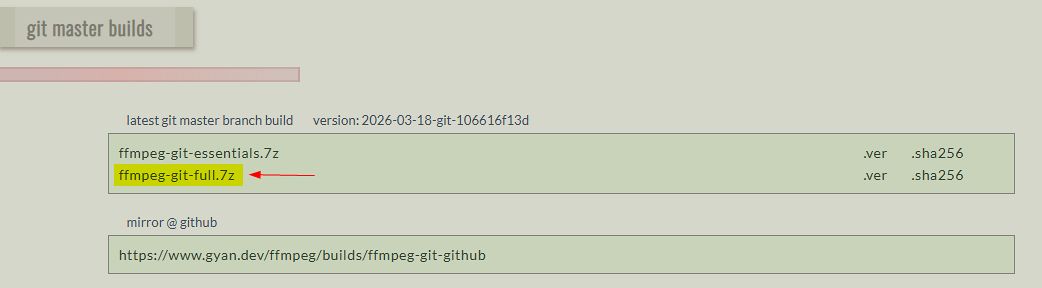
到FFmpeg Builds binaries for Windows
下載 ffmpeg-git-full.7z
解壓後取得ffmpeg.exe 檔案放入同一資料夾:
D:\tools\yt\ffmpeg.exe
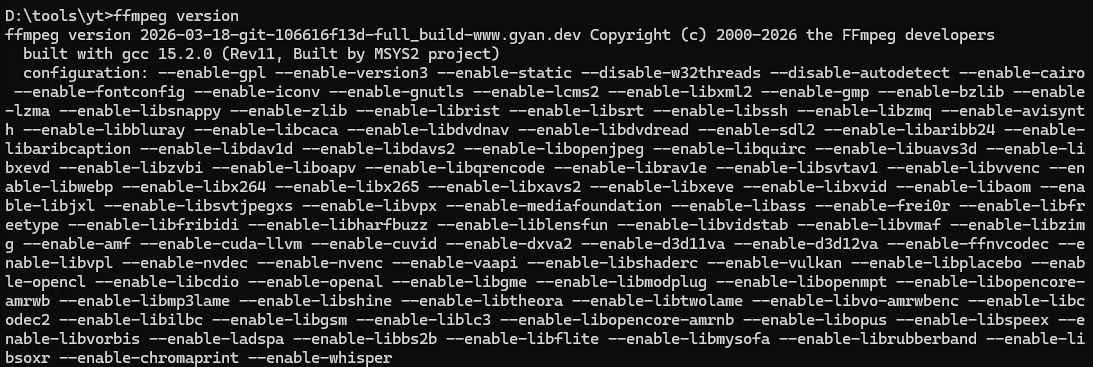
輸入ffmpeg -version看有沒有顯示版本資訊
加入 PATH
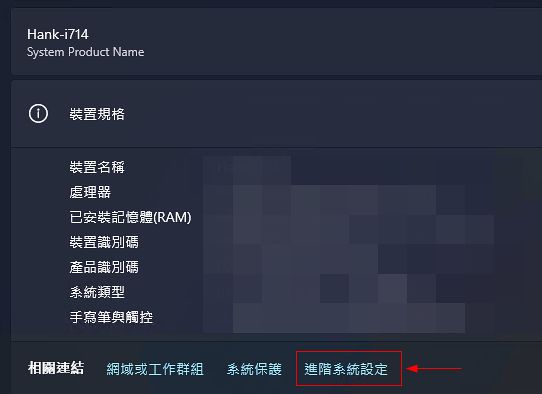
系統 → 進階系統設定 → 環境變數
編輯 Path
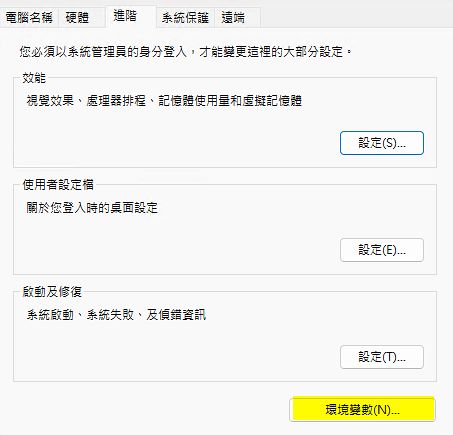
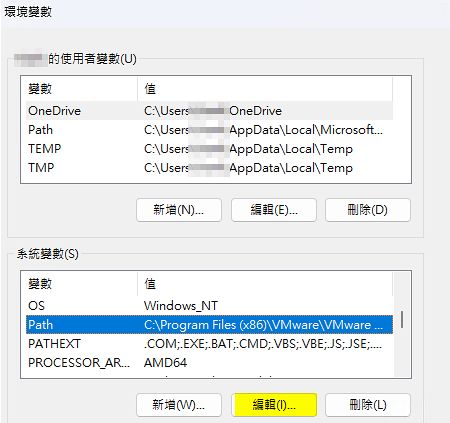
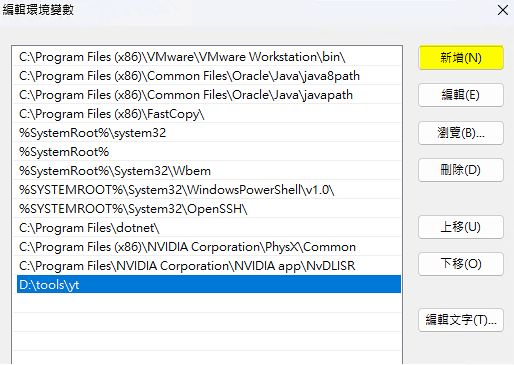
指令說明
yt-dlp必須透過終端機打指令下載,因此了解操作方式是必要的,以下列出常用的指令說明
下載「最高畫質 + 有聲音」(自動合併)
yt-dlp -f "bv*+ba/b" URL強制輸出 MP4(相容性最好)
yt-dlp -f "bv*+ba" --merge-output-format mp4 URL明確指定 1080p+MP4
yt-dlp -f "bv*[height<=1080]+ba" --merge-output-format mp4 URL顯示可用畫質清單(先看再選)
yt-dlp -F URL加入縮圖、Metadata
yt-dlp -f "bv*+ba" --embed-metadata --embed-thumbnail --merge-output-format mp4 URL更多指令說明請參考請參閱Github
自訂網頁
這麼多指令不是很好記,為了使用方便,請Chtgpt產生了網頁版,方便使用。
將下列內容存成index.html
<!doctype html>
<html lang="zh-Hant">
<head>
  <meta charset="utf-8" />
  <meta name="viewport" content="width=device-width, initial-scale=1" />
  <title>yt-dlp 影音下載</title>

  <style>
    :root{
      --bg:#0f1115;
      --panel:#252a2f;
      --line:#3a3f45;
      --text:#e9edf1;
      --muted:#b8c0c8;
      --field:#1f242a;
      --field-border:#40464d;
      --focus:#6ea8fe;
      --btn:#1f242a;
      --btn-border:#40464d;
      --btn-hover:#2a3037;
      --ok:#2ecc71;
      --warn:#f1c40f;
    }
    *{box-sizing:border-box}
    body{
      margin:0;
      background:var(--bg);
      color:var(--text);
      font-family: system-ui, -apple-system, "Segoe UI", "Microsoft JhengHei", sans-serif;
      padding:16px;
    }
    .wrap{
      max-width:560px;
      margin:auto;
      background:var(--panel);
      border:1px solid var(--line);
    }
    .header{
      padding:10px 12px;
      font-weight:700;
      border-bottom:1px solid var(--line);
    }
    .section{
      padding:12px;
      border-bottom:1px solid var(--line);
    }
    .title{
      font-size:13px;
      font-weight:700;
      margin-bottom:10px;
    }
    .label{
      font-size:11px;
      color:var(--muted);
      margin-bottom:6px;
      display:block;
      font-weight:700;
    }
    input, select, textarea{
      width:100%;
      padding:8px 10px;
      background:var(--field);
      color:var(--text);
      border:1px solid var(--field-border);
      font-size:12px;
    }
    textarea{
      min-height:150px;
      font-family: Consolas, monospace;
      background:#0c0e12;
      resize: vertical;
    }
    input:focus, select:focus{
      outline:none;
      border-color:var(--focus);
      box-shadow: 0 0 0 2px rgba(110,168,254,.12);
    }

    .row{
      display:flex;
      gap:10px;
      align-items:center;
      justify-content:flex-end;
      margin-top:10px;
    }
    .btn{
      appearance:none;
      border:1px solid var(--btn-border);
      background:var(--btn);
      color:var(--text);
      padding:8px 10px;
      font-size:12px;
      font-weight:700;
      cursor:pointer;
    }
    .btn:hover{ background: var(--btn-hover); }
    .btn:active{ transform: translateY(1px); }

    .hint{
      flex: 1 1 auto;
      color: var(--muted);
      font-size: 11px;
      font-weight: 600;
    }

    .toast{
      display:none;
      margin-top:10px;
      font-size:12px;
      font-weight:700;
    }
    .toast.ok{ color: var(--ok); }
    .toast.warn{ color: var(--warn); }

    .hidden{ display:none !important; }
  </style>
</head>

<body>
<div class="wrap">
  <div class="header">yt-dlp 影音下載</div>

  <!-- URL -->
  <div class="section">
    <div class="title">影音檔的網址</div>
    <label class="label" for="url">url</label>
    <input id="url" type="text" value="https://www.youtube.com/">
  </div>

  <!-- Output format -->
  <div class="section">
    <div class="title">輸出格式</div>
    <label class="label" for="format">outputFormat</label>
    <select id="format">
      <option value="mp3">mp3(僅音訊)</option>
      <option value="mp4" selected>mp4(影音)</option>
    </select>
  </div>

  <!-- Resolution (mp4 only) -->
  <div class="section" id="resolutionSection">
    <div class="title">影片畫質</div>
    <label class="label" for="resolution">videoResolution</label>
    <select id="resolution">
      <option value="best" selected>最高畫質</option>
      <option value="2160">2160p (4K)</option>
      <option value="1440">1440p</option>
      <option value="1080">1080p</option>
      <option value="720">720p</option>
    </select>
  </div>

  <!-- Generated Command -->
  <div class="section" style="border-bottom:0;">
    <div class="title">產生的下載指令(PowerShell / CMD)</div>
    <textarea id="command" readonly></textarea>

    <div class="row">
      <div class="hint">提示:請先安裝 yt-dlp 與 ffmpeg(Windows static build)</div>
      <button class="btn" id="copyBtn" type="button">複製指令</button>
    </div>

    <div class="toast ok" id="toastOk">已複製到剪貼簿</div>
    <div class="toast warn" id="toastWarn">複製失敗:已選取文字,請按 Ctrl+C</div>
  </div>
</div>

<script>
  const elUrl = document.getElementById("url");
  const elFormat = document.getElementById("format");
  const elResolution = document.getElementById("resolution");
  const elResolutionSection = document.getElementById("resolutionSection");
  const elCommand = document.getElementById("command");
  const elCopyBtn = document.getElementById("copyBtn");
  const toastOk = document.getElementById("toastOk");
  const toastWarn = document.getElementById("toastWarn");

  function hideToasts(){
    toastOk.style.display = "none";
    toastWarn.style.display = "none";
  }

  function showToast(ok=true){
    hideToasts();
    (ok ? toastOk : toastWarn).style.display = "block";
    setTimeout(hideToasts, 1800);
  }

  function updateVisibility(){
    const fmt = elFormat.value;
    // mp3 時隱藏畫質區塊;mp4 顯示
    if (fmt === "mp3") {
      elResolutionSection.classList.add("hidden");
    } else {
      elResolutionSection.classList.remove("hidden");
    }
  }

  function buildCommand() {
    const url = elUrl.value.trim();
    const fmt = elFormat.value;
    const res = elResolution.value;

    let cmd = "yt-dlp ";

    if (fmt === "mp3") {
      // 音訊:取最佳音訊即可
      cmd += `-f "ba/b" -x --audio-format mp3 `;
      cmd += `--embed-metadata --embed-thumbnail `;
    } else {
      // 影音:依畫質選擇
      let videoFormat = `bv*+ba/b`;
      if (res !== "best") videoFormat = `bv*[height<=${res}]+ba`;

      cmd += `-f "${videoFormat}" --merge-output-format mp4 `;
      cmd += `--embed-metadata --embed-thumbnail `;
    }

    cmd += `"${url}"`;
    elCommand.value = cmd;
  }

  async function copyCommand(){
    hideToasts();
    const text = elCommand.value;

    // 優先用 Clipboard API(需 https 或 localhost,file:// 有時會被瀏覽器限制)
    try {
      if (navigator.clipboard && window.isSecureContext) {
        await navigator.clipboard.writeText(text);
        showToast(true);
        return;
      }
      // fallback:execCommand(舊但仍可用)
      elCommand.focus();
      elCommand.select();
      const ok = document.execCommand("copy");
      showToast(ok);
      if (!ok) showToast(false);
    } catch (e) {
      // fallback:選取文字讓使用者 Ctrl+C
      elCommand.focus();
      elCommand.select();
      showToast(false);
    }
  }

  function refresh(){
    updateVisibility();
    buildCommand();
  }

  elUrl.addEventListener("input", refresh);
  elFormat.addEventListener("input", refresh);
  elResolution.addEventListener("input", refresh);
  elCopyBtn.addEventListener("click", copyCommand);

  refresh();
</script>
</body>
</html>
點選index.html的畫面如下
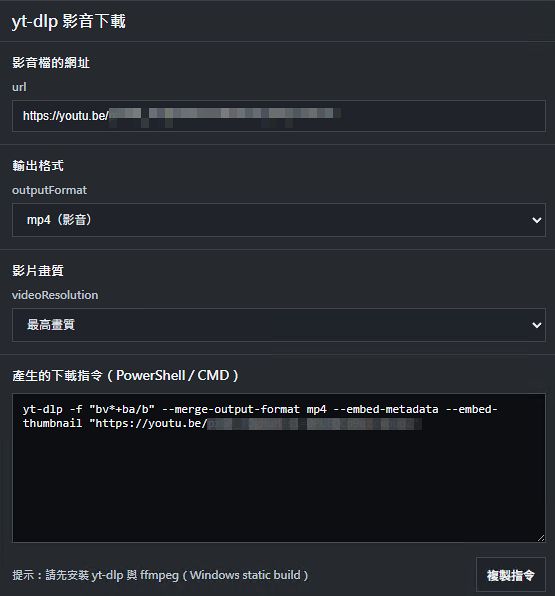
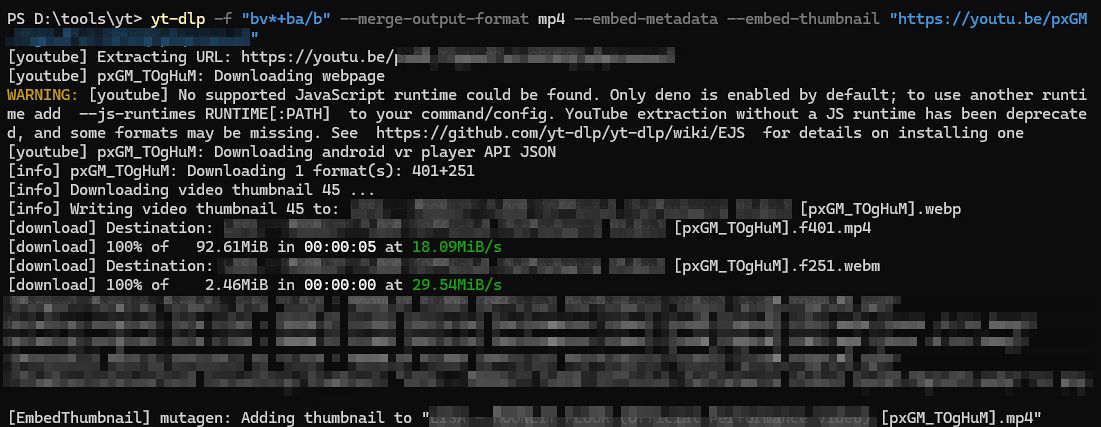
在Youtube找到喜歡的影音連結,貼到URL,依據輸出格式與影片畫質產生相對應的指令。
將其複製到對應的目錄,就可以直接下載。
‼️如果沒地方使用自己訂的html,可以點選Moment網站上的yt_dlp_tool直接使用
⬇️為下載的畫面
支援的網站
依據yt-dlp說明thousands of sites支援數千網站,常見的網站都有支援。
常見的主流社群媒體都有支援
facebook
facebook:ads
facebook:reel
FacebookPluginsVideo
Instagram
instagram:story
instagram:tag: Instagram hashtag search URLs
instagram:user: Instagram user profile (Currently broken)
InstagramIOS: IOS instagram:// URL
youtube: youtube YouTube
youtube:clip: youtube
youtube:favorites: youtube YouTube liked videos; ":ytfav" keyword (requires cookies)
youtube:history: youtube Youtube watch history; ":ythis" keyword (requires cookies)
youtube:music:search_url: youtube YouTube music search URLs with selectable sections, e.g. #songs
youtube:notif: youtube YouTube notifications; ":ytnotif" keyword (requires cookies)
youtube:playlist: youtube YouTube playlists
youtube:recommended: youtube YouTube recommended videos; ":ytrec" keyword
youtube:search: youtube YouTube search; "ytsearch:" prefix
youtube:search_url: youtube YouTube search URLs with sorting and filter support
youtube:shorts:pivot:audio: youtube YouTube Shorts audio pivot (Shorts using audio of a given video)
youtube:subscriptions: youtube YouTube subscriptions feed; ":ytsubs" keyword (requires cookies)
youtube:tab: youtube YouTube Tabs
youtube:user: youtube YouTube user videos; "ytuser:" prefix
youtube:watchlater: youtube Youtube watch later list; ":ytwatchlater" keyword (requires cookies)
YoutubeLivestreamEmbed: youtube YouTube livestream embeds
YoutubeYtBe: youtube youtu.be透過上述的index.html,實測facebook、Instagram都能正常下載。
有興趣的夥伴可以多加利用。
延伸閱讀